How to Create a Package File from a Template in Adobe Illustrator
See Adobe Illustrator: Tips and Tricks for similar articles.
Illustrator comes with templates for all kinds of promotional media - everything from brochures and business cards, to t-shirts, disk labels and boxes. In this tutorial, a template will be used to start the packaging design for a carton.
- Go to File > New from Template.
- The directory brings you to the Templates folder inside the Adobe Illustrator folder. Open the Blank Templates folder.

- Select Boxes.ait, then click New.

- A new file is created from the template with three carton die lines on separate artboards.

- After you decide on which dieline to use, the other two can be deleted in the Artboards Panel.

- Go to the Layers Panel and you'll see there are two layers with the die line layer on top.

- Different die lines will require different techniques for changing the dimensions. Let's say the box needed is 6" x 8" x 3". Create two rectangles, one at 6" x 8", the other 3" x 8". Give them a different stroke color with no fill, and position them side by side aligned with a fold line in the template.

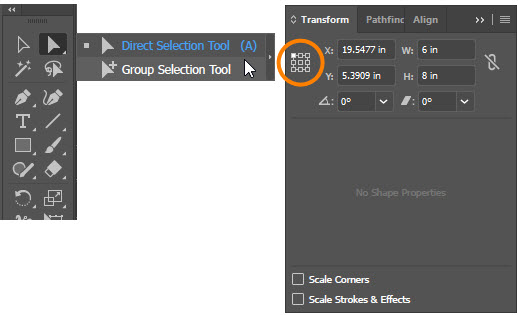
- Use the Direct Selection Tool and Group Selection Tool to adjust the lines and shapes in the dieline. Keep in mind that the Reference Point Selector in the Transform Panel provides precise positioning of lines and shapes.