Webucator Logo
0
Home
Course Catalog
Training Delivery Methods
Live Online Training
Public Class Schedule
Private Training
On-Demand Training
Colleges and Universities
Professional Business Skills Training
Purchase Courseware
Pricing & Savings
About Us
Sign In
Contact Us
  1-877-932-8228
© 2026 Webucator, LLC All Rights Reserved.
Courses
Webucator Logo
Browse Course Catalog
Solutions

Training

Course Catalog Live Instructor-Led Online Public Class Schedule Customized Private Training On-Demand Courses

Explore

Webucator for L&D Leaders About Webucator Client Testimonials Partial Client List Purchase Courseware

Contact

Contact Us 1-877-932-8228

Specialized Solutions

Colleges and Universities Professional Business Skills Training
0 Sign In
Browse Webucator's Full Course Catalog
  1. Home
  2. Catalog
  1. Catalog

Get Your Temporary Microsoft License

Instructions

To provide all students with a similar experience, to allow real-time sharing and collaboration, and to avoid messing around with any private work information, we provide access to a temporary Microsoft 365 account for this class.

Before class, make sure that you confirm:

  • You can access a private/incognito browser window. With a modern browser open (Chrome or Edge), press Ctrl + Shift + N (Command + Shift + N on Mac) to open the private/incognito window.
    • If you are unable to do this on a work device, consider using a personal device for taking this class.
    • If this doesn't work, please reach out to us at support@webucator.com.

To access the temporary license on the day of class:

  1. Open a private/incognito browser window - this is to avoid conflict with any accounts that you may be signed into automatically. 
  2. Go to https://www.coursewarestore.com/lookup-lab-license/ and enter the email address you used to register for this class.
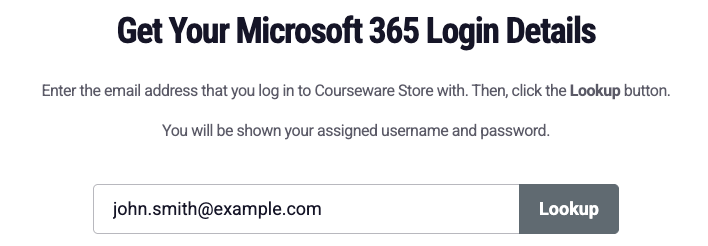
  3. Select Lookup and you will see your temporary Microsoft 365 username (email) and password:
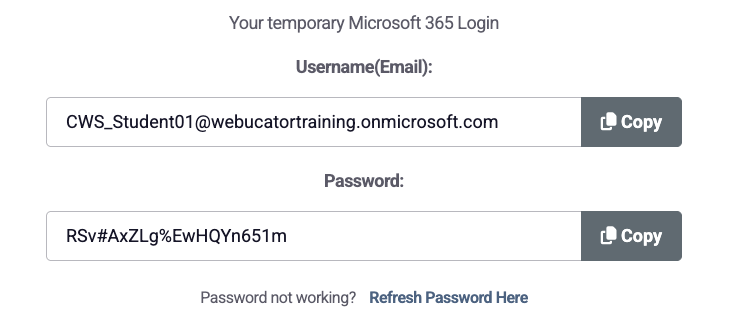
  4. In a new tab (still in the private/incognito browser window), go to https://m365.cloud.microsoft/ and sign in.
  5. Copy and paste the username and password from the Microsoft 365 Login Details page to sign in to your temporary account for class.

Courses and Class Files

This setup page is used for the following course:

Courses

  1. Microsoft 365 Collaboration Essentials.
    Webucator logo

    Training Options

    • Live Instructor-Led Online
    • Public Class Schedule
    • On-Demand Courses
    • Customized Private Training

    Course Catalog

    • Full Catalog
    • Pricing & Savings

    Explore

    • Webucator for L&D Leaders

    About Us

    • Contact Us
    • About Webucator
    • Client Testimonials
    • Client List
    • Privacy Policy
    • Train for Us
    • Cancellation Policy
    • Make a Payment

    Microsoft

    • Microsoft Training
    • Certified Microsoft Course List
    • Microsoft Courseware

    Resources

    • Newsletter
    • Setup Pages
    • Articles

    Courseware

    • Purchase Courseware

    Specialized Solutions

    • Colleges and Universities
    • Professional Business Skills Training
    © 2004-2026 Webucator, LLC All Rights Reserved.